
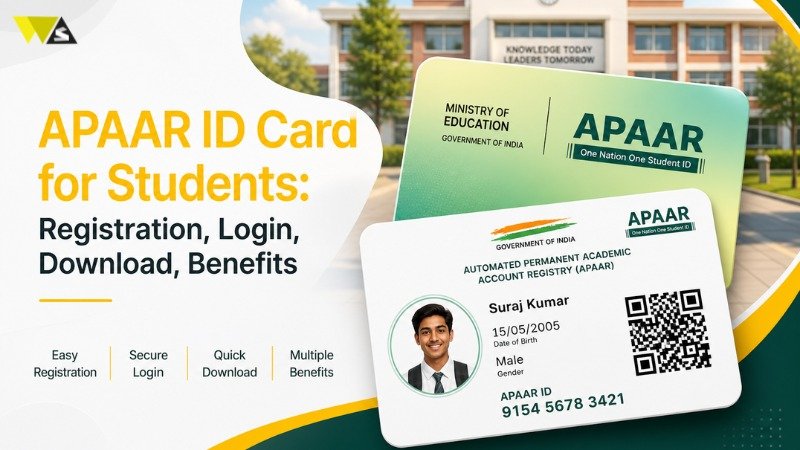
The APAAR ID has started a new program called “One Nation, One Student ID Card” program. It keeps all your school and college details in one secure place and helps you track your learning journey.
What is Apaar ID for Students?
APAAR ID means “Automated Permanent Academic Account Registry.” It is issued through the Academic Bank of Credits (ABC). It keeps your academic details in one place, just like a digital locker. The Ministry of Education, Government of India, has launched the APAAR ID card under the National Education Policy (NEP) 2020. It is also called “One Nation, One Student ID Card.” APAAR ID is a digital student ID with a unique 12-digit number. It helps students store all their academic records in one place. This includes marksheets, certificates, degrees, and achievements. This ID is given to students in both private and government schools and colleges, from pre-primary to higher education. It is a lifelong ID that tracks a student’s academic journey and makes school or college transfers easier. APAAR ID works along with Aadhaar and helps students store and access their education data safely online.
| Feature | What It Means for Students |
| Digital Identity | APAAR ID is a digital student ID launched by the Government of India |
| NEP 2020 Initiative | It is part of the National Education Policy 2020, known as “One Nation, One Student ID” |
| Unique ID Number | Each student receives a unique 12-digit identification number |
| All Records in One Place | Stores marksheets, certificates, degrees, and achievements digitally |
| For All Students | Available for students from school to college level |
| Lifetime Validity | A lifelong ID that tracks academic progress over time |
| Easy Transfers | Makes switching schools or colleges smoother and hassle-free |
| Linked but Separate | Works with Aadhaar but remains a separate system |
| Secure Digital Storage | Keeps all educational records safe and accessible online |
Apaar ID Registration Process Online
To get an APAAR ID, students must have an Aadhaar card. They also need a DigiLocker account for verification. After parents give permission, the school will create the APAAR ID. Students can check their ID on DigiLocker or the Academic Bank of Credits website.
Registration Process Through DigiLocker –
Step 1: Go to the DigiLocker website.
Step 2: Now click “Login/Register” and add your mobile number, address, and Aadhaar information to create your DigiLocker account.
Step 3: Open your DigiLocker account and log in.
Step 4: Now click on “Search Documents” and enter “Academic Bank of Credits” in the search box.
Step 5: Select the “APAAR/ABC ID Card” option.
Step 6: Now enter your personal and academic details, tick the consent box, and click on “Get Document.”
Step 7: After you submit the form, your APAAR ID card will be generated automatically.
Step 8: Now click on “Issued Documents” and select the download icon for “APAAR/ABC ID Card.”
Through Academic Bank of Credits Portal-
Step 1: First, open the Academic Bank of Credits (ABC) website in your browser.
Step 2: Now go to “My Account” and then choose the “Student” option.
Step 3: Now click “Sign Up” and add your mobile number, address, and Aadhaar information to create your account.
Step 4: Now log in to your DigiLocker account with your credentials.
Step 5: When you see the prompt, click “I agree” to share your Aadhaar details with ABC for KYC.
Step 6: Now enter your academic details, including your school or university name, class, and course.
Step 7: After you submit the form, your APAAR ID card will be generated automatically.
How to Login to the APAAR Portal?
Follow these steps to access your APAAR account and manage your academic profile:
- Go to the official Academic Bank of Credits (ABC) portal at abc.gov.in.
- Now click on the “My Account” tab.
- Choose “Student.”
- There are three ways to log in: Mobile Number, Username, or Other.
- Now choose your preferred login option. It is recommended to use your mobile number.
- Now enter your credentials and click on “Sign In.”
- If you use a mobile number, verify your login with the OTP sent to your phone.
- Enter your security PIN when asked.
- After this, you will be redirected to your APAAR dashboard.
How to Download Apaar ID Card?
After completing APAAR registration, students can download their ID card. Follow these steps:
Step 1: Sign in to the Academic Bank of Credits website.
Step 2: Select the dashboard and select “APAAR Card Download.”
Step 3: Now your APAAR card will appear on the screen.
Step 4: Now click on the “Download” or “Print” option.
Step 5: APAAR card downloaded successfully.
How to check Status of Apaar ID Card?
Students can verify their APAAR ID status by using:
- Students can check with their school administration or district education office (for school-level IDs).
- Go to DigiLocker and check the “Issued Documents” section. If your APAAR ID is not there, the institution may still be processing parent consent or Aadhaar e-KYC.
Benefits of Apaar ID Card
APAAR ID makes student records organised and easy to manage. It gives these benefits:
- APAAR ID is a lifetime ID for students. It helps them track their academic progress and achievements easily.
- APAAR ID stores all student records digitally in one place, like exam results, report cards, achievements, and other academic details.
- APAAR ID makes it easy for students to change schools or colleges because all their academic data is stored in one place.
- APAAR ID helps find students who leave school and bring them back to study.
- APAAR ID is connected to the Academic Bank of Credits (ABC). Your course credits are saved automatically and can be used for higher education or college admissions.
- APAAR card stores complete student information, including personal details, academic data, sports activities, scholarships, and awards.
How to Make Apaar ID?
Follow these steps to make your APAAR ID card:
Step 1: First, visit your school.
Step 2: Submit the parent consent form to school.
Step 3: After submission, the school will verify the student’s identity.
Step 4: The UDISE system will generate the APAAR ID linked to the student’s PEN ID.
Step 5: After verification, the APAAR ID will be created and linked to the student’s DigiLocker account.
What is Apaar ID Consent Form?
Schools and colleges can create APAAR IDs only after getting permission from parents. This consent is important because the card includes personal details like blood group, height, and weight.
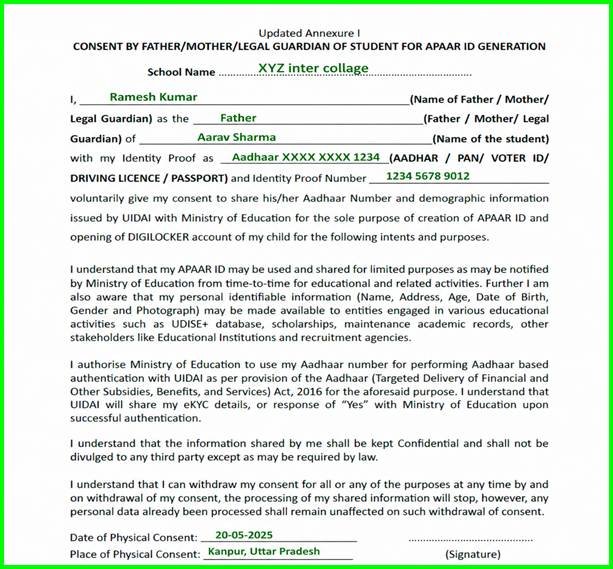
Schools can give a consent form to parents who agree. Parents can also download the form, fill it, and submit it to the school. This form works as a permission letter, and Parents can cancel their permission at any time.
How to Fill Apaar ID Consent Form?
Follow the steps below to fill out the APAAR ID consent form:
Step 1: Go to the official APAAR website.
Step 2: Go down the page and select “Resources.”
Step 3: Click on the download icon for “APAAR Parental Consent Form
Step 4: Fill the required details on the form.
Step 5: Now submit the completed form to your child’s school.
Required Details for APAAR ID Card
To create an APAAR ID, you need the following details:
- UDISE+ Student ID (PEN)
- Student’s full name
- Date of birth
- Gender
- Mobile number
- Mother’s name
- Father’s name
- Name as per Aadhaar
How to Manage Your APAAR Profile
To make sure your academic details are accurate and up to date:
- Log in to your APAAR account regularly
- Check your personal and academic information.
- Use “Update Profile” to make changes
- For major changes (name, DOB), update Aadhaar first
- Use “KYC Update” to sync with Aadhaar
- Check that all achievements are correct
- Report any errors to your school or college
- Keep both APAAR and Aadhaar details updated
Common APAAR ID Issues
- Login Issues: If you have login issues, use the “Forgot PIN” option and verify with your date of birth. If OTP is not received, check your network and try again after a few minutes. If your account is locked, wait for 30 minutes before trying again.
- Download Problems: If your APAAR card is not visible in DigiLocker, search for “Academic Bank of Credits.” If the download fails, check your internet connection or try a different browser. For better print quality, download the high-resolution version of your card.
- Verification Issues: If your details are incorrect, update them through the KYC process. If your card shows “Invalid,” contact the APAAR helpdesk for assistance. If verification times out, try again after some time or during non-peak hours.
| Problem Type | Issue | Solution |
| Login Issues | Forgot PIN | Use “Forgot PIN” and verify with date of birth |
| OTP not received | Check network and try again later | |
| Account locked | Wait 30 minutes and try again | |
| Download Problems | Card not in DigiLocker | Search “Academic Bank of Credits” |
| Download not working | Check internet or try another browser | |
| Poor print quality | Download high-quality version | |
| Verification Issues | Wrong details | Update details through KYC |
| Card shows invalid | Contact APAAR helpdesk | |
| Verification timeout | Try again later or during non-peak hours |
Conclusion
APAAR ID works as a digital academic ID for students in India. It allows easy access to records like certificates and achievements. Keep your information updated and your login details safe so you can access your records anytime.
You can use APAAR ID when changing schools, applying for higher studies, or jobs. It helps verify your academic achievements. For school students, parents or guardians must give permission to create the APAAR ID.
FAQ
1. What is APAAR ID and why is it important for students?
APAAR ID is a digital student ID by the Government of India. It gives each student a 12-digit number. It keeps all study records in one place. Students can check their records anytime and change schools easily.
2. Who can apply for an APAAR ID?
APAAR ID is available for all students in India, including those studying in private and government schools and colleges. It is given from pre-primary level to higher education. Every student can get it as long as they have an Aadhaar card and parental consent (for school students). It is a lifelong ID, so students can use it for their whole study journey.
3. What documents are required to create an APAAR ID?
Students need basic details like Aadhaar, mobile number, date of birth, and school or college name. They also need DigiLocker for verification. School students must give a consent form. These details help verify identity and keep records safe.
4. How can students register for an APAAR ID online?
Students can register through DigiLocker or the Academic Bank of Credits (ABC) portal. First, they need to create a DigiLocker account using their mobile number and Aadhaar details. Then they can search for “Academic Bank of Credits” and select the APAAR ID option. After filling in personal and academic details and giving consent, the APAAR ID is generated automatically.
5. How can I log in to my APAAR account?
Go to the Academic Bank of Credits website and click “My Account.” Select students and log in using your mobile number or username. Enter OTP if needed and then your PIN. Now you can open your APAAR dashboard.
6. How can I download my APAAR ID card?
Log in to the ABC portal and go to your dashboard. Click “APAAR Card Download.” Your card will show on the screen. Download or print it. You can also find it in DigiLocker.
7. What should I do if my APAAR ID is not generated or showing?
If your APAAR ID is not showing, check DigiLocker first. If it’s still not there, contact your school. It may take some time.
8. What are the main benefits of using APAAR ID?
APAAR ID helps students keep all their academic records in one secure place. It makes it easier to change schools or colleges because records are already available online. It also stores course credits through the Academic Bank of Credits, which helps in higher education. It tracks student progress and achievements and can also help bring back students who have dropped out.
9. Why is the parental consent form required for APAAR ID?
The parental consent form is needed because APAAR ID stores personal details of the student. Schools cannot create the ID without parents’ permission. This helps keep the student’s data safe. Parents can also cancel their consent anytime.
10. What should I do if I face issues with login, download, or verification?
If you have login problems, use “Forgot PIN” or try again later. If OTP doesn’t come, check your network. For download issues, try another browser or better internet. If details are wrong, update them or contact support.
Read our article:PAN Card Correction Form: How To Make Correction In PAN Card Online?