
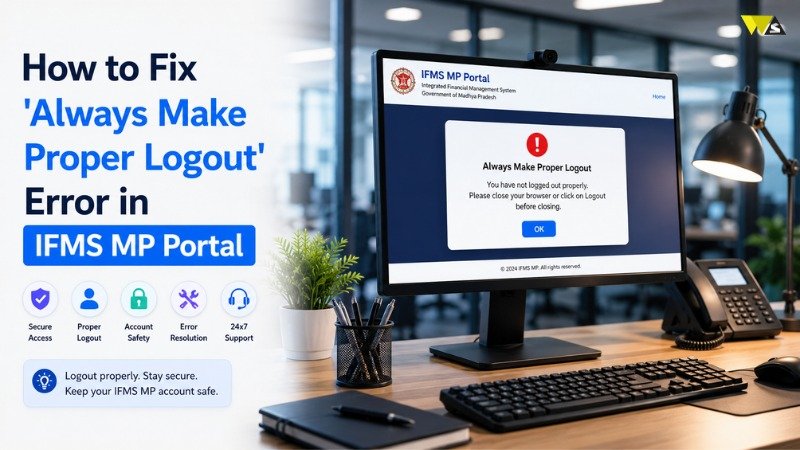
Are you seeing the message “Always Make Proper Logout” when you try to log in to the IFMS MP Treasury portal? Don’t worry this is a common and harmless session error, not an account problem. It simply means your last session did not close the right way. This simple guide explains why this error happens and gives you easy steps to fix it.
Table of Contents
ToggleWhat Does the ‘Always Make Proper Logout’ Error Mean?
The IFMS MP portal allows only one active login session per user at a time for security purposes. When you log in, the system creates a session, and when you click the “Logout” button, that session ends properly. If you exit the portal without using the Logout button, the system may still consider your session active and show this message when you log in again.
This message is simply a reminder to use the Logout option before closing the portal. Once the old session expires or is cleared, you should be able to log in normally.
How to Fix the ‘Always Make Proper Logout’ Error: Step-by-Step
Fix 1: Wait a Few Minutes and Try Again
An open session automatically times out after some time.
- Wait for a few minutes.
- Then open the portal and log in again.
Fix 2: Log Out Properly
If your old session is still open in a tab:
- Go back to that tab.
- Click the Logout button properly.
- Then start a fresh login.
Fix 3: Clear Your Browser Cache and Cookies
Old browser data can sometimes make an expired session appear active.
- Open your browser settings, go to Privacy, and select “Clear Browsing Data.”
- Select Cache and Cookies and clear them.
- Close and reopen the browser, then log in again.
Fix 4: Close All Portal Tabs and Windows
Multiple open tabs can confuse the system.
- Close every tab and window of the IFMS MP portal.
- Open only one fresh tab and try again.
Fix 5: Use Incognito Mode or a Different Browser
This opens the site without old session data.
- Open the portal in Incognito / Private mode.
- Use different browsers like Chrome or Firefox.
Fix 6: Restart Your Device
Many session issues can be fixed by simply restarting your device.
- Restart your phone, laptop, or computer.
- Reopen the portal and log in again.
Fix 7: Wait Longer or Contact Your DDO
If the session is still locked after all the above:
- Wait a bit longer for the server to release the session.
- If it is not clear, contact your DDO (Drawing and Disbursing Officer) or the IFMS support team for help.
Why Does This Error Happen in IFMS MP Portal?
Here are the most common reasons:
- You closed the browser or tab without clicking Logout.
- Your internet disconnected suddenly during a session.
- The browser or device crashed while you were logged in.
- You opened the portal in multiple tabs or devices at the same time.
- Old cache and cookies kept the previous session active.
- The session is still timing out from your last login.
Common Problem & Solutions in IFMS MP Portal
| Problem | Quick Fix |
|---|---|
| Error right after closing browser | Wait a few minutes for the session to time out. |
| Old session still open in a tab | Go back and click Logout properly. |
| Error keeps coming back | Clear cache and cookies. |
| Multiple tabs open | Close all tabs; use only one. |
| Error in your main browser | Try incognito mode or another browser. |
| Stuck session after a crash | Restart your device. |
| Session still locked | Wait longer or contact your DDO. |
How to Avoid IFMS MP Portal Error in Future
- Always click the Logout button before closing the portal.
- Do not just close the tab or browser directly.
- Avoid opening the portal in many tabs or devices at once.
- Clear your cache from time to time.
- On shared or public computers, log out fully every time.
Conclusion
The “Always Make Proper Logout” error in the IFMS MP portal looks scary, but it is one of the easiest problems to fix. It only means your last session did not close properly your account and salary data are completely safe.
In most cases, simply waiting a few minutes and clearing your cache is enough to log in again. Always click Logout before closing the portal.
Frequently Asked Questions (FAQs)
1. What does “Always Make Proper Logout” mean in IFMS MP?
It means your last session was not closed properly. The system still sees it as active, so it blocks a new login until the old session is cleared or times out.
2. Is “Always Make Proper Logout” a serious error?
No. It is a simple session error, not a password or account problem. Your data is safe.
3. Why do I keep getting this error?
Usually because you close the browser or tab without clicking Logout, or due to old cache and cookies keeping the session active.
4. How long does it take for the old session to clear?
The session usually times out automatically after a few minutes. Waiting and retrying often fixes it.
5. How do I fix it quickly?
Wait a few minutes, clear your cache and cookies, close all portal tabs, and log in again — preferably in a fresh or incognito window.
6. Does clearing cache and cookies help?
Yes. Clearing cache and cookies removes the old session data and usually solves the error.
7. Can opening the portal in many tabs cause this error?
Yes. Multiple open tabs or devices can confuse the session. Use only one tab at a time.
8. How can I stop this error from happening again?
Always click the Logout button before closing the portal, and avoid logging in from many tabs or devices at once.
9. The error is still showing after I tried everything. What now?
Wait a little longer for the session to release. If it stays locked, contact your DDO or the IFMS support team.
10. Will this error lock my account?
No. It does not lock your account. Once the old session clears, you can log in normally.
Read our article:How to Download IFMS MP Pay Slip 2026: Step-by-Step Guide