
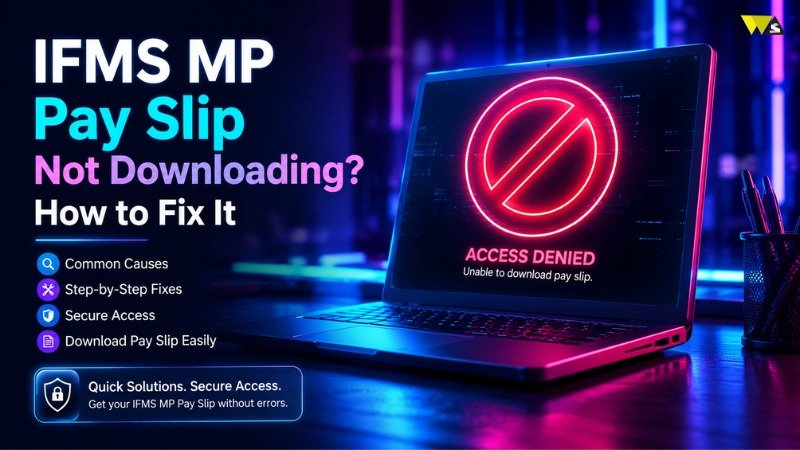
If your IFMS MP pay slip is not downloading, the most common reasons are a blocked browser pop-up, a slow or busy server, an old browser, a full cache, or a wrong month/year selection. Fix it by allowing pop-ups, clearing your cache, switching to Google Chrome, logging in again, and trying during off-peak hours. If nothing works, contact your DDO or the IFMS helpdesk.
This blog explains why the IFMS MP pay slip download fails and how to fix this problem. Follow the steps and your salary slip should download as a PDF.
Table of Contents
ToggleWhy Is My IFMS MP Pay Slip Not Downloading?
If your IFMS MP pay slip is not downloading, Here are the most common reasons:
- Pop-ups are blocked – The pay slip opens in a new window. If your browser blocks pop-ups, the PDF never shows.
- Server is busy – At the start of the month, many employees log in at once. Heavy traffic slows down or stops the portal.
- Outdated or unsupported browser – An outdated browser may not load the PDF correctly.
- Browser cache – Too much stored data can break the page.
- Slow or weak internet – A broken connection stops the download halfway.
- Wrong month or year selected – If you pick a month with no salary record, no slip is generated.
- Session expired – If you stay logged in too long, the portal logs you out and the download fails.
- Account not active – If your DDO has not activated your ESS access, the pay slip option will not work.
- No PDF viewer – Your device or browser may not be able to open PDF files.
How to Fix IFMS MP Pay Slip Not Downloading (Step by Step)
Follow these simple steps to get resolved from error:
1. Allow Pop-Ups in Your Browser
The pay slip usually opens in a pop-up window. If it is blocked, nothing happens when you click Download.
- Look for a small “pop-up blocked” icon in the address bar.
- Click it and select Always allow pop-ups from this site.
- Try downloading the slip again.
2. Clear Your Browser Cache and Cookies
A full cache is a very common cause of loading errors.
- Open your browser settings.
- Go to Privacy → Clear browsing data.
- Select Cached images and files and Cookies, then clear them.
- Close the browser, reopen it, and log in again.
3. Use Google Chrome (Updated Version)
The IFMS MP portal works best on Google Chrome. Make sure it is updated to the latest version. If Chrome fails, try Microsoft Edge or Mozilla Firefox.
4. Access the Portal When Traffic Is Lower
Too many users can slow down the portal. Wait a while and try again later. If the page is slow or stops, wait and try early morning or late evening.
5. Check Your Internet Connection
If the file is not downloading, check your internet connection and switch to Wi-Fi.
6. Refresh Your Session & Log In Again
If you have been idle for a while, log out fully, close the browser, and log in again with your User ID, password, and captcha.
7. Select the Correct Month and Year
Make sure you choose a month for which your salary was actually paid. Selecting a future month or a month before joining will show no slip.
8. Disable Browser Extensions
Ad blockers and some extensions can block the PDF. Open an Incognito / Private window which runs without extensions and try downloading there.
9. Update or Use a PDF Viewer
If the file downloads but won’t open, install a free PDF reader like Adobe and open the file in Chrome.
How to Download IFMS MP Pay Slip Correctly
Here is the correct way to download your MP Treasury pay slip
- Open a web browser and go to the official portal: mptreasury.gov.in
- Click on Employee Login (Karmchari Seva / Employee Corner).
- Enter your Employee Code / User ID, password, and captcha. Complete OTP verification if asked.
- Go to the ESS (Employee Self Service) section.
- Open the Employee Payslip Report under reports.
- Select the month and year you need.
- Click Generate, then View or Download to save the slip as a PDF.
Fixing Pay Slip Download Problems on Mobile
You can download the IFMS MP pay slip on a mobile phone. If it is not downloading on mobile:
- Use the Chrome browser on your phone, not an in-app browser.
- Allow pop-ups and downloads in Chrome’s site settings.
- Tap the three dots and choose “Desktop Site.”
- Check that you have free storage space to save the PDF.
- Make sure a PDF reader app is installed.
When to Contact Your DDO or the IFMS Helpdesk
If you have tried all the steps above and the pay slip still won’t download, the problem may be with your account access, not your device. In that case:
- Contact your DDO (Drawing and Disbursing Officer) for help with account activation, login, or password reset.
- Use the IFMS helpdesk / toll-free number shown on the official mptreasury.gov.in website for technical issues.
- If your salary details appear incorrect or are missing, contact your treasury office to resolve the issue.
Conclusion
If your IFMS MP pay slip is not downloading, don’t worry. Most problems can be solved by enabling pop ups, clearing your cache, and using an updated browser. If the server is busy, try again later. If none of these steps work, contact your DDO or the IFMS support team for help.
Save the official portal mptreasury.gov.in so you can download your MP Treasury salary slip any time you need it for tax filing, loans, or job verification.
Frequently Asked Questions (FAQs)
1. Why is my IFMS MP pay slip not downloading?
The most common reasons are blocked pop-ups, a busy server, an old browser, a full cache, weak internet, or selecting the wrong month. Fix these one by one and the slip should download.
2. What is the official website for the IFMS MP pay slip?
The official portal is mptreasury.gov.in. Avoid unofficial websites.
3. How do I download my MP Treasury pay slip?
Sign in to the MP Treasury portal. Go to ESS/ Employee Payslip Report, choose the month and year, and click Download to save your salary slip.
4. Which browser works best for IFMS MP?
Google Chrome works best. Microsoft Edge and Mozilla Firefox also work well.
5. Can I download my IFMS MP pay slip on a mobile phone?
Yes. Open mptreasury.gov.in in your mobile Chrome browser, allow pop-ups, and you can view and download the PDF on your phone.
6. The page is loading very slowly. What should I do?
The server is usually busy in the first week of the month and during office hours. Try again early in the morning or late at night.
7. I forgot my IFMS MP password. How can I reset it?
Use the Forgot Password option on the login page (it uses OTP on your registered mobile number). If that fails, contact your DDO.
8. The portal says “no pay slip found.” Why?
You may have selected a month for which no salary was paid, or your account access is not active yet. Choose the correct month, or contact your DDO.
9. The pay slip downloads but won’t open. What’s wrong?
Your device may not have a PDF reader. Install a free PDF app like Adobe Acrobat Reader, or open the file in Chrome.
10. Who should I contact if nothing works?
Contact your DDO first, or use the IFMS helpdesk number on the official mptreasury.gov.in website.
Read our article:How to Download IFMS MP Pay Slip 2026: Step-by-Step Guide