
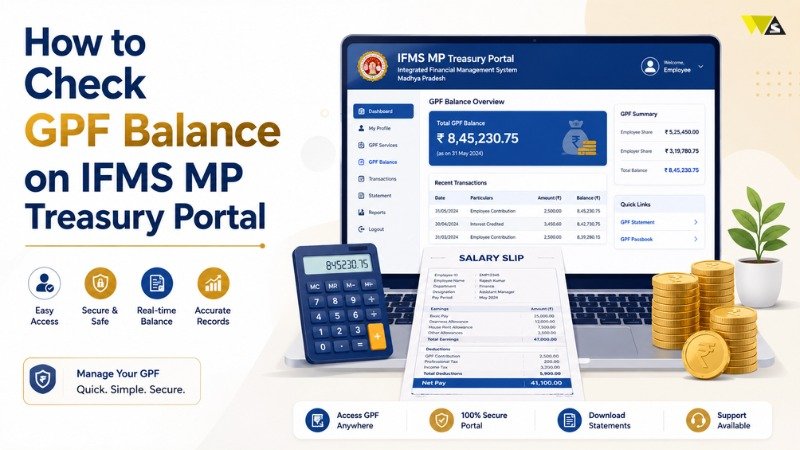
To check your GPF balance on the IFMS MP Treasury portal, go to mptreasury.gov.in , Enter your User ID and password to log in, and captcha, open HRMIS Home → ESS (Employee Self Service), and click the GPF section. There you can view your current GPF balance, recent transactions, and download your GPF statement as a PDF. This blog explains what GPF is, how to check your GPF balance on IFMS MP Treasury, how to download your GPF statement, and what to do if something goes wrong.
Table of Contents
ToggleWhat Is GPF in IFMS MP Treasury?
GPF stands for General Provident Fund. It is a savings plan that helps government employees save money for the future. A fixed part of your salary is deducted every month and added to your GPF account. This money earns interest and is paid to you at retirement (or earlier, through approved withdrawals). IFMS stands for Integrated Financial Management System. It is the official digital system of the Madhya Pradesh government for salaries, pensions, challans, and GPF account management.
Through the MP Treasury IFMS portal (mptreasury.gov.in ), employees can:
- Check their current GPF balance
- View monthly GPF contributions and transaction history
- Download the GPF statement / GPF slip as a PDF
- Track interest credited to the account
What You Need Before Checking GPF Balance
Keep these ready before you log in:
- Your IFMS User ID / Employee Code
- Your password
- A registered mobile number (for OTP, if asked)
- Strong Internet connection and an updated browser (Google Chrome works best)
If you are a new employee and do not have login details yet, your DDO (Drawing and Disbursing Officer) will create your account.
How to Check GPF Balance on IFMS MP Treasury Portal (Step by Step)
Follow these steps to check your GPF balance online:
- Open the portal – Go to the official website mptreasury.gov.in in your browser.
- Click Employee Login – Look for the Employee Login or IFMS Login option on the homepage.
- Enter your details – Type your User ID / Employee Code, password, and the captcha code. Complete OTP verification if asked.
- Open your dashboard – After login, you will see your IFMS dashboard.
- Go to HRMIS Home – Click on the HRMIS Home option.
- Open ESS (Employee Self Service) – This is where all your personal financial details are stored.
- Click the GPF section – Open the GPF option to see your General Provident Fund details.
- View your balance – Your current GPF balance, monthly contributions, and recent transactions will appear on the screen.
Now your GPF balance is visible.
How to Download Your GPF Statement (GPF Slip)
If you want a copy of your GPF account for your records or for a loan/withdrawal application:
- Log in to mptreasury.gov.in and open HRMIS Home → ESS.
- Click the GPF section.
- Select the GPF Statement option and choose the financial year you need.
- Click Generate, then View or Download.
- Save the statement as a PDF or print it.
The GPF statement usually shows your opening balance, monthly subscriptions, any withdrawals, interest credited, and the closing balance.
What Details Does the GPF Statement Show?
A typical IFMS MP GPF statement includes:
| GPF Statement Item | Description |
| GPF Account Number | Your unique provident fund ID |
| Opening Balance | Balance at the start of the year |
| Monthly Subscription | The amount deducted each month |
| Withdrawals / Advances | Money you took out (if any) |
| Interest Credited | Interest earned during the year |
| Closing Balance | Total balance at year end |
Checking these regularly helps you confirm that all your contributions are added correctly.
How to Check GPF Balance on Mobile
Yes, you can check your IFMS MP GPF balance on a mobile phone:
- Open mptreasury.gov.in in your phone’s Chrome browser.
- Enter your User ID and password to log in, and captcha.
- Open HRMIS Home → ESS → GPF.
- For a better view, tap the three-dot menu → Desktop site.
- Make sure a PDF reader app is installed if you want to download the statement.
Common Problems and Solutions of GPF Balance on IFMS MP Treasury Portal
Sometimes employees face small issues while checking GPF. Here is how to solve them:
| Problem | Easy Fix |
| Login not working | Check User ID, password, and captcha; reset password if needed |
| Page won’t load | Clear browser cache and use an updated Chrome browser |
| Portal is slow | Server may be busy — try during off-peak hours |
| GPF balance not showing | Make sure your account is active; contact your DDO |
| Statement won’t download | Allow pop-ups and install a PDF reader |
| Wrong balance shown | Note the difference and report it to your DDO or treasury office |
Why Checking Your GPF Balance Regularly Is Important
- Track your savings – Know exactly how much you have saved for retirement.
- Check contributions – Confirm that every monthly deduction is added correctly.
- Plan withdrawals – Useful when applying for a GPF advance or final payment.
- Avoid errors – Catch any missing entries early and report them quickly.
- Retirement planning – Helps you estimate your total fund at retirement.
Conclusion
Checking your GPF balance on the IFMS MP Treasury portal is quick and simple. Just log in to mptreasury.gov.in , Open HRMIS Home, go to ESS, and select GPF to view your balance and statement. Doing this a few times a year helps you keep your retirement savings on track and catch any mistakes early.
Save the official portal so you can check your General Provident Fund balance, download your GPF statement, and manage your other treasury services any time.
Frequently Asked Questions (FAQs)
1. How can I check my GPF balance on IFMS MP Treasury?
Log in to mptreasury.gov.in with your User ID, password, and captcha. Then open HRMIS Home → ESS → GPF to view your current GPF balance and transactions.
2. What is the official website to check GPF in MP?
The official portal is mptreasury.gov.in. Avoid unofficial websites, as they cannot show your real GPF account details.
3. What does GPF mean?
GPF stands for General Provident Fund. It is a savings scheme where a part of a government employee’s salary is deducted monthly and paid back with interest, usually at retirement.
4. How do I download my GPF statement from IFMS MP?
After login, go to ESS → GPF → GPF Statement, choose the financial year, click Generate, and then Download it as a PDF.
5. Can I check my GPF balance on a mobile phone?
Yes. Open mptreasury.gov.in in your mobile Chrome browser, log in, and open HRMIS Home → ESS → GPF. Use the “Desktop site” option for a clearer view.
6. I forgot my IFMS login password. What should I do?
Use the Forgot Password option on the login page (it uses OTP on your registered mobile number). If it still fails, contact your DDO.
7. My GPF balance is not showing. Why?
Your account may not be active, or the server may be busy. Refresh the page and try again. If the problem continues, contact your DDO or treasury office.
8. How often is the GPF balance updated on IFMS MP?
The balance is updated as contributions and transactions are processed. For the latest figure, log in again and refresh your GPF section.
9. The GPF balance looks wrong. What can I do?
If you notice any difference or missing entry, inform your DDO or treasury office. They can verify your records and make the necessary corrections.
10. Who do I contact if the portal is not working?
Contact your DDO first, or use the IFMS helpdesk number listed on the official mptreasury.gov.in website.
Read our article:How to Download IFMS MP Pay Slip 2026: Step-by-Step Guide