
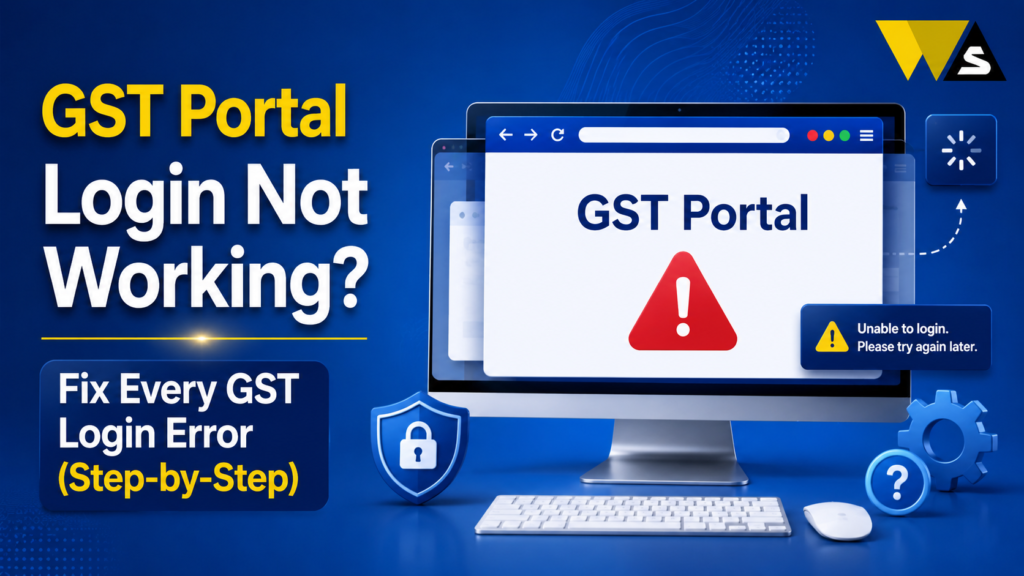
GST Portal login may not work because of a wrong username or password, captcha or OTP problem, locked account, browser issue, portal maintenance, or DSC error. Remember, your GST username is not your GSTIN.
Quick fixes: use “Forgot Password” / “Forgot Username”, refresh the captcha, check your registered mobile/email for OTP, wait 30 minutes if the account is locked (or call the GST helpdesk 1800-1200-232), clear your browser cache or use incognito, and for DSC errors, run the latest emSigner as administrator and allow https://127.0.0.1:1585 in your browser. Always use only the official site gst.gov.in .
Is your GST login not working right before a deadline? Do not panic. This blog gives you the fix for every common GST login problem.
Table of Contents
ToggleWhy is My GST Portal Login Not Working?
When your GST login fails, your GST work stops and it always feels like it happens right before a filing deadline. Almost every GST login problem is fixable once you know the cause.
GST login problems can happen for many reasons. Here are the common problems and simple fixes.
- Wrong username or password
- Captcha error
- OTP not received
- Account locked after wrong attempts
- First-time login confusion
- Browser or cache problems
- GST portal down / maintenance
- emSigner / DSC error (during filing/signing)
GST Portal Login Problems Quick-Fix Table
| Problem | Quick Fix |
| Wrong password | Use “Forgot Password” (OTP reset) |
| Forgot username | Use “Forgot Username” |
| Using GSTIN as username | Use the username you created, not GSTIN |
| Captcha error | Refresh captcha, type exactly |
| OTP not received | Check mobile/email, resend, check spam |
| Account locked | Wait 30 minutes / call 1800-1200-232 |
| Site slow/not opening | Clear cache / incognito / try later |
| emSigner/DSC error | Run latest emSigner as admin, allow port 1585 |
Problem 1: Wrong Username or Password in GST Portal Login
This is the most common reason GST login fails:
- Your username is the ID you created yourself during first-time login; it is NOT your GSTIN and NOT your email.
- Your password is case-sensitive, check your Caps Lock.
- Do not confuse the temporary password (from your first-time email) with your permanent password.
How to fix a wrong password:
- On the login page, click “Forgot Password”.
- Enter your username.
- Complete OTP verification (sent to your registered mobile/email).
- Set a new password and log in.
How to fix a forgotten username:
- Click “Forgot Username” on the login page.
- Complete OTP verification.
- Your username is sent to your registered email/mobile.
Save your username and password safely somewhere secure, so you do not get locked out near a deadline.
Problem 2: “Username is Not GSTIN” Confusion
Many people try to log in using their GSTIN as the username and it fails. This is a very common mistake.
Remember:
- Your GSTIN (15-digit number) is not your login username.
- Your username is the short ID you created yourself at first-time login.
- The GSTIN is used only in specific recovery flows, not for daily login.
If you never created a username (you are a brand-new user), you must do the first-time login first (explained below) to create your username and password. If you truly cannot recall your username, use “Forgot Username” do not keep trying the GSTIN, or you may lock your account.
Problem 3: Captcha Error in GST Portal Login
Captcha errors can cause login problems even when your password is correct.
How to fix it:
- Type the captcha exactly as shown (some are case-sensitive).
- If the image is blurry or unclear, click refresh to get a new captcha.
- Do not copy-paste it manually.
- If it keeps failing, reload the page and try again.
A wrong captcha does not lock your account, but repeated wrong passwords do so make sure your password is right, not just the captcha.
Problem 4: OTP Not Received in GST Portal Login
GST may send an OTP to your registered mobile or email. If the OTP does not arrive, check these things:
How to fix it:
- Check that your registered mobile number and email are correct and active.
- Ensure your phone has a network signal.
- Wait about a minute, then click “Resend OTP”.
- Check your email spam/junk folder for the email OTP.
- If the mobile OTP never comes, use the email OTP (or the other way round).
- Restart your phone if messages are stuck.
If your registered mobile/email is old/wrong: you may need to update it (this can require a core amendment on the portal or help from a tax professional).
Keep your registered mobile and email active most GST access depends on receiving the OTP.
Problem 5: Account Locked in GST Portal Login
Too many wrong passwords can lock your GST account.
How to fix it:
- Stop trying if your account is locked. More attempts may extend the lock.
- Wait about 30 minutes, then try again with the correct details.
- If you are unsure of the password, first do a “Forgot Password” reset.
- If the account is still locked after waiting, contact the GST helpdesk at 1800-1200-232 or raise a grievance on the portal.
Problem 6: First-Time Login Not Working in GST Portal Login
If you have just registered for GST and cannot log in, you may need to complete the first-time login process first.
How to do first-time login correctly:
- Go to gst.gov.in and click “Login”.
- Click the “first time login” link below the login fields.
- Enter your Provisional ID / GSTIN / UIN.
- Enter the temporary password sent to your email.
- Enter the captcha and log in.
- Create your own username and password on the next page and submit.
- Now log in again with your new username and password.
The temporary password is only for the first login after that, always use the new password you created.
Problem 7: Browser and Cache Problems in GST Portal Login
Sometimes the login fails not because of your details, but because of your browser.
How to fix it:
- Clear your browser cache and cookies, then reload the page.
- Try incognito / private mode.
- Using a supported, updated browser Google Chrome or Microsoft Edge work best.
- Disable heavy extensions (ad-blockers, VPNs) that may block the portal.
- Try a different browser or a different device.
- Make sure your date and time settings on the device are correct (wrong time can break secure connections).
For DSC/emSigner work, use Chrome, Edge, or Internet Explorer these are the supported browsers.
Problem 8: GST Portal Down or Under Maintenance
If everything is correct on your side, the GST portal may be having technical issues. Heavy traffic and maintenance can make the portal slow or temporarily unavailable.
How to handle it:
- Wait and try again after some time, often early morning or late night is smoother.
- Check if others are facing the same issue (it may be a portal-wide problem).
- Not repeatedly submitting it can cause errors or double entries.
- Plan your filing early, not on the last day, to avoid deadline-day rushes.
File your returns a few days before the due date the portal is far less crowded, and you avoid last-minute failures.
Problem 9: emSigner / DSC Error
Usually seen when signing with a DSC while registering DSC or filing returns. The message often reads: “Failed to establish connection to the server. Kindly restart the emSigner.”
The emSigner utility (which connects your DSC token to the portal) is not running properly, is outdated, or your browser is blocking the localhost connection (port 1585).
Step-by-step fix:
- Plug in your DSC USB token properly. If already plugged in, remove and reinsert it.
- Uninstall the old emSigner (Control Panel → Uninstall a Program).
- Log in to gst.gov.in , go to your Profile → Register/Update DSC, and download the latest emSigner utility. Make sure you pick the GST version (not the MCA or Income Tax one; they are different).
- Install it and restart your computer.
- Right-click the emSigner icon and choose “Run as administrator”.
- In your browser, open https://127.0.0.1:1585 — if it shows a security warning, click “Advanced” → “Proceed to 127.0.0.1 (unsafe)” to allow the localhost connection.
- Make sure Java (JRE) is updated, if your setup uses it.
- Now go back to the GST portal and register/update DSC or file your return.
The current emSigner uses port 1585 (https://127.0.0.1:1585). Older versions used 1645 / 1565 — so always use the latest emSigner from the GST portal.
Corporate office issue: Office firewalls often block port 1585. If so, use a personal mobile hotspot, ask IT to whitelist port 1585, or use a personal computer for DSC work.
Keep your DSC valid an expired DSC also causes signing errors.
Problem 10: Other DSC Errors and Fixes
Besides the connection error, you may see these DSC messages:
- “No Valid DSC Found”: Your DSC registration is incomplete or expired, re-register your DSC, or renew it if expired.
- “PAN Verification Failed”: The PAN in your DSC does not match your GST records use the correct DSC with matching PAN.
- “Failed to Load Java Applet”: Update Java (JRE) to the latest version.
- “USB Token Not Detected”: Reinsert the token, install the token driver software (ePass, SafeNet, etc.), and try a different USB port.
How to register/update DSC on GST portal:
- Log in, click the arrow near your profile name (top-right).
- Select “Register / Update DSC”.
- Select your name, and complete the process with the emSigner running.
Only Companies and LLPs must use DSC. Other taxpayers can file with EVC (OTP) — so if DSC keeps failing and you are not a Company/LLP, use EVC instead.
When Should You Contact the GST Helpdesk?
If you have tried the fixes and still cannot log in, contact official support:
- GST Helpdesk number: 1800-1200-232
- Raise a grievance on the GST portal’s self-service/grievance section.
- Explain the exact error message you see — it helps them solve it faster.
How to Avoid GST Portal Login Problems in Future
- Save your username and password securely (not the GSTIN — your actual login ID).
- Keep your registered mobile and email active for OTPs.
- File returns a few days early, not on the deadline day.
- Keep emSigner and Java updated, and your DSC valid, if you use DSC.
- Use a supported, updated browser (Chrome/Edge).
- Create sub-users for your team instead of sharing your main login.
- Always type gst.gov.in yourself — never log in through SMS/email links.
Beware of Fake GST Portal Login Help and Scams
- Never log in through links in SMS, WhatsApp, or email — they may be fake GST sites that steal your login.
- Never share your GST password or OTP with anyone, even “support” callers.
- Use only the official portal gst.gov.in and the official helpdesk 1800-1200-232.
- Beware of anyone asking for money to “unlock” your account — official support does not work that way.
If cheated: report to 1930 / cybercrime.gov.in.
Conclusion
If your GST portal login is not working, stay calm every common problem has a simple fix. Most failures come from a wrong username/password (remember, the username is not your GSTIN), a captcha or OTP issue, a locked account, a browser problem, portal maintenance, or the emSigner/DSC error.
For GST login issues, reset your password or username, refresh the captcha, and check your OTP. Wait 30 minutes if the account is locked. Clear your cache or use incognito mode. For DSC errors, update emSigner and run it as administrator.
Frequently Asked Questions (FAQs)
1. Why is my GST portal login not working?
A wrong username or password (your username is not your GSTIN), a captcha error, OTP not received, a locked account after wrong attempts, browser/cache issues, portal maintenance, or an emSigner/DSC error. Each has a simple fix.
2. My GST username and password are not working. What do I do?
Make sure you are using the username you created (not your GSTIN) and check Caps Lock, since the password is case-sensitive. If it still fails, use “Forgot Password” to reset via OTP, or “Forgot Username” to recover your username.
3. Why am I not receiving the GST login OTP?
Check that your registered mobile and email are correct and active, ensure your phone has signal, click “Resend OTP”, and check your email spam folder. If the mobile OTP fails, use the email OTP. If your contact details are outdated, you may need to update them.
4. My GST account is locked. How do I unlock it?
Too many wrong login attempts can lock your GST account. Wait about 30 minutes and try again with the correct details. Reset your password if needed. If the account is still locked, contact GST support.
5. How do I fix the emSigner “Failed to establish connection” error?
To fix GST DSC signing problems, reconnect your DSC token and uninstall the old emSigner. Download the latest emSigner from the GST portal under “Profile” → “Register/Update DSC.” Install it, restart your computer, and run emSigner as administrator. Allow the local connection when prompted and keep Java updated.
6. Why is my DSC not working on the GST portal?
If your DSC is not working, first check emSigner, your browser, and the USB token. Also make sure your DSC is valid, registered, and linked to the correct PAN.
7. Which browser works best for GST login and DSC?
Use an updated browser such as Google Chrome or Microsoft Edge for GST login. If you cannot log in, clear your browser cache or try incognito mode.
8. The GST portal is very slow or not opening. What should I do?
If the GST portal is not working, it may be busy because of heavy traffic. Try again later, clear your browser cache, or use incognito mode.
9. Do I need a DSC to log in and file GST?
Companies and LLPs need a DSC. Proprietors and individuals can use OTP-based EVC instead. If your DSC is not working, try EVC if you are not a Company or LLP.
10. Who do I contact if my GST login still does not work?
Contact the official GST helpdesk at 1800-1200-232 or raise a grievance on the portal’s self-service section. Note the exact error message and a screenshot before contacting them, and never share your password or OTP with anyone.
Read our article:
Read our article:
Read our article:
Read our article: